How to Update a Skill: CLI vs ZIP
Update an installed skill on any AI tool: via the Skills IL CLI, or by downloading and re-uploading a ZIP on Claude.ai, Claude Desktop, ChatGPT, and Manus.
Skills ship updates over time: a fixed link, a new feature, a form number or tax rate that changed. The version you installed does not update itself, so to pick up the improvements you have to refresh it. This guide shows how, both ways.
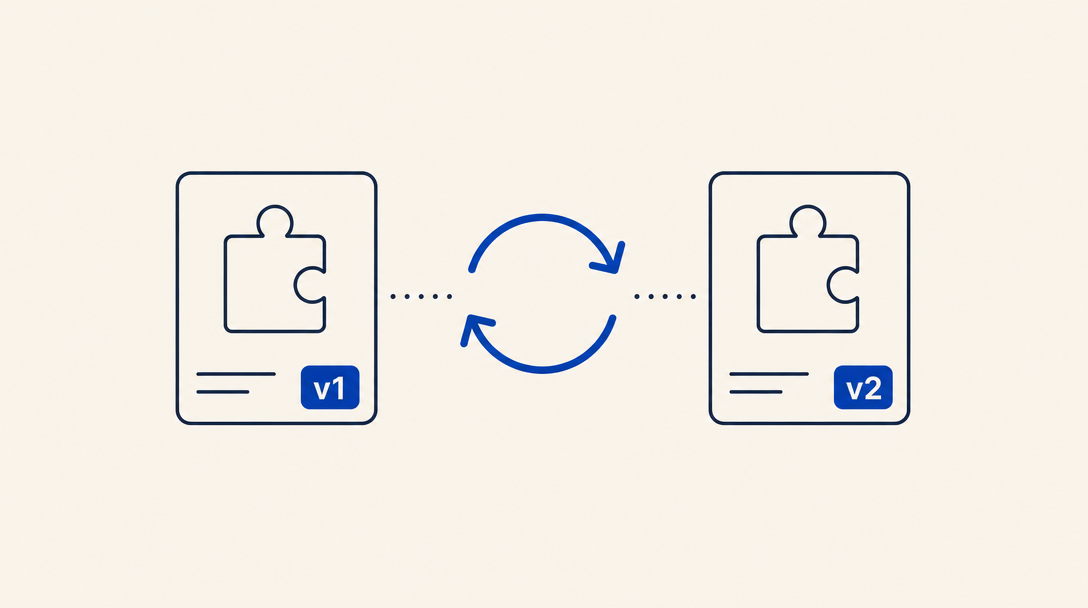
Two Update Paths, Depending on How You Installed
How you update depends on how you installed the skill in the first place:
- Via CLI: developer tools (Claude Code, Cursor, GitHub Copilot, Windsurf, OpenCode, Codex, Gemini CLI, Antigravity, and OpenClaw) install skills with
npx skills-il. To update, you run one command that pulls the latest version and overwrites the installed files. - Via ZIP: chat and desktop tools (Claude.ai, Claude Desktop, ChatGPT, and Manus) have no command line. You install a skill by uploading a ZIP through the settings UI, and to update you download a fresh ZIP, remove the old skill, and upload the new one.
Not sure which path is yours? Each skill page lists the tools it supports. If you work in a chat tool like Claude.ai or ChatGPT, Part 2 below (Update via ZIP) is yours. If you are a developer working in a terminal, Part 1 is for you.
Part 1: Update via CLI
The Skills IL CLI has two dedicated update commands: check reports which installed skills have a newer version available, and update pulls the latest version for all of them. Both work against a lock file (skills-lock.json) created in your project at install time, comparing your installed copy against the latest content in the repo.
1See what's available (optional)
Run this from your project folder:
npx skills-il checkIt scans every skill recorded in the lock file and reports, per skill, whether a newer version is available than the one you have installed.
2Update every skill
npx skills-il updateThis updates every skill installed in the project at once, across all the agents it detected (Claude Code, Cursor, GitHub Copilot, Windsurf, OpenCode, Codex, Gemini CLI, Antigravity, OpenClaw).
Updating a Single Skill
If you do not want to update everything, re-run the install command just for the skill you care about. A second add call pulls the latest version and overwrites the installed files:
npx skills-il add skills-il/localization --skill hebrew-dateTo target a single agent among several installed, add the -a flag:
npx skills-il add skills-il/localization --skill hebrew-date -a claude-codeUpdating a Whole Bundle
If you installed a skill bundle, refresh every skill in it at once with update-bundle:
npx skills-il update-bundle <bundle-slug>There is no automatic update through the CLI. To pick up new versions, run update (or a repeat add) periodically. Developer tip: add npx skills-il update to a postinstall hook in your project's package.json so skills refresh on every npm install.
Part 2: Update via ZIP
On chat and desktop tools, updating is manual: download a new version from the site, remove the old one, upload the new one. The flow is the same everywhere; only the UI differs.
3Download the latest ZIP from the site
Open the skill page in the skills library, scroll to the "Install via Claude.ai, Claude Desktop, ChatGPT, Manus" section, pick the tab for your tool, and click "Download ZIP". The ZIP is built the moment you click, from the latest content on the site.
The new ZIP contains the updated version in its metadata.json. If it matches the version you already installed, no update has shipped since your last install.
4Remove the old, upload the new
Now pick the tool you use and do the swap in it. The principle is the same everywhere: delete the existing skill and upload the new ZIP in its place.
Available on every plan (Free, Pro, Max, Team, Enterprise), as long as Code execution and file creation is enabled under Settings → Capabilities (on org accounts the admin enables it under Organization settings → Skills).
- Open claude.ai and sign in
- In the menu, click Customize → Skills
- Find the existing skill in the list and click it, open the "..." menu next to the toggle, choose Delete, and confirm
- Back on the Skills page, click the + button, choose + Create skill, then Upload a skill
- Upload the ZIP you downloaded and make sure the skill's toggle is On
- Start a new conversation; the skill loads automatically when the task is relevant
Here too, Code execution and file creation must be enabled under Settings → Capabilities before uploading.
- Open the Claude Desktop app
- Go to Settings → Capabilities → Skills (in newer builds: Features → Skills)
- Find the existing skill, click it, and choose Delete or Remove from the "..." menu
- Click Upload skill and drag or pick the new ZIP. The ZIP must contain a folder with a valid SKILL.md at its root
- Flip the skill's toggle to On
- Close the settings window and start a new conversation
ChatGPT Skills is generally available on the organization plans (Business, Enterprise, Edu, and Healthcare), and OpenAI's pricing page lists it as beta on the personal plans (Free, Go, Plus, Pro). On Enterprise and Edu it is off by default and a workspace admin enables it (OpenAI plans to turn it on by default on July 23, 2026 for Enterprise workspaces that have not opted out).
Note that ChatGPT does not sync skills between surfaces: a skill you add on desktop does not appear on web or mobile automatically, so add it separately on each one.
- Sign in at chatgpt.com on an organization account
- Click your profile icon and select Skills
- Find the existing skill, open its "..." menu, and pick Delete
- Back on the Skills page, click Create and choose Upload from your computer
- Select the ZIP and approve any permissions it requests. ChatGPT scans every uploaded skill before it becomes available, so there may be a short delay before it activates
- Start a new conversation; the skill should appear in the Skills list
- Open manus.im and sign in
- Click the Skills tab in the left sidebar
- Find the existing skill and remove it from its settings menu
- Click + Add above the Skills list and choose Upload a skill
- Manus accepts a ZIP archive, a .skill file, or an uncompressed folder. Pick the ZIP you downloaded
- In a new chat, type "/" and pick the updated skill from the popup list
In organizations (Team / Enterprise / Business): if the skill owner shared it with the organization, everyone it is shared with gets the new version automatically when the owner updates, with no need to remove and re-upload. The manual remove-and-upload is only for a skill you uploaded for yourself.
Manus also supports importing directly from GitHub: instead of Upload, paste the category repo URL (for example https://github.com/skills-il/developer-tools) and Manus pulls the latest version itself, without touching ZIP files.
Confirming the Update Landed
After updating, whichever path you took, it is worth checking that the new version is actually running:
- Compare versions: open
metadata.jsonin the installed skill (for example.claude/skills/hebrew-date/metadata.json) and compareversionto the one on the skill page. On the CLI you can just runnpx skills-il checkagain. - Exercise the change: ask the agent to do something tied to the update (a new feature or a fix described on the skill page) and confirm the response reflects it.
- Start a new session: most tools load skills only at the start of a conversation, so closing and reopening forces a reload. On Claude Desktop, fully quit the app (Quit, not just closing the window) and reopen it.
FAQ
How do I know a new version of an installed skill has shipped?
A few options:
- Save the skill to your list (heart icon on the skill page). As soon as an update ships you get an in-app notification in the bell at the top of the site, plus a weekly digest email summarizing updates to skills you saved. Manage email preferences under My profile > "Notifications".
- Check manually: the skill page shows the current
versionand last-updated date. Compare against the one you have installed. - Via the CLI: run
npx skills-il checkto list every installed skill that has a newer version available.
I installed through the CLI. Is there an auto-update?
Not today. The CLI only pulls the latest when you run npx skills-il update (or a repeat add) yourself. You can wire npx skills-il update into a postinstall hook so skills refresh on every npm install.
Does updating overwrite manual edits I made to the skill?
Yes. Updating through both CLI and ZIP overwrites the installed files. If you made local edits, save them separately before updating.
The installed version matches the site, but the behavior did not change. Why?
Usually it is because the agent is still using the skill it loaded at the start of the conversation. Close that conversation and start a new one. On Claude Desktop, fully quit the app (Quit), not just close the window.
I uploaded the ZIP in Claude.ai. Do I get the update on Claude Desktop too?
Not necessarily. Skills are managed per surface, and an update on one surface is not guaranteed to appear on another. The safe rule: on every surface you use, download the new ZIP and upload it manually. The one exception is a skill shared to an organization (Team / Enterprise), which updates for all members automatically.
How do I update several skills at once?
For a bundle, use npx skills-il update-bundle <bundle-slug> to refresh every skill in it. To update every installed skill in a project, run npx skills-il update. Chat and desktop tools have no bulk update, so there you update each skill separately.
Is a reinstall the same as an update? Is there a separate "update" button?
Essentially yes. The CLI has an explicit update command, but re-running npx skills-il add for the same skill also overwrites it with the latest version. On ZIP tools there is no separate "Update" button, removing the old skill and uploading a new ZIP is the update.