The three platforms for non-developers
You have three serious options for setting up an agent without writing code: Claude Projects (Anthropic), ChatGPT GPTs (OpenAI), and Gemini Gems (Google). Each one lets you save a prompt and a set of instructions once, then re-use them in a clean conversation each time. The differences matter for Israeli users and they matter for which kind of task you are doing.
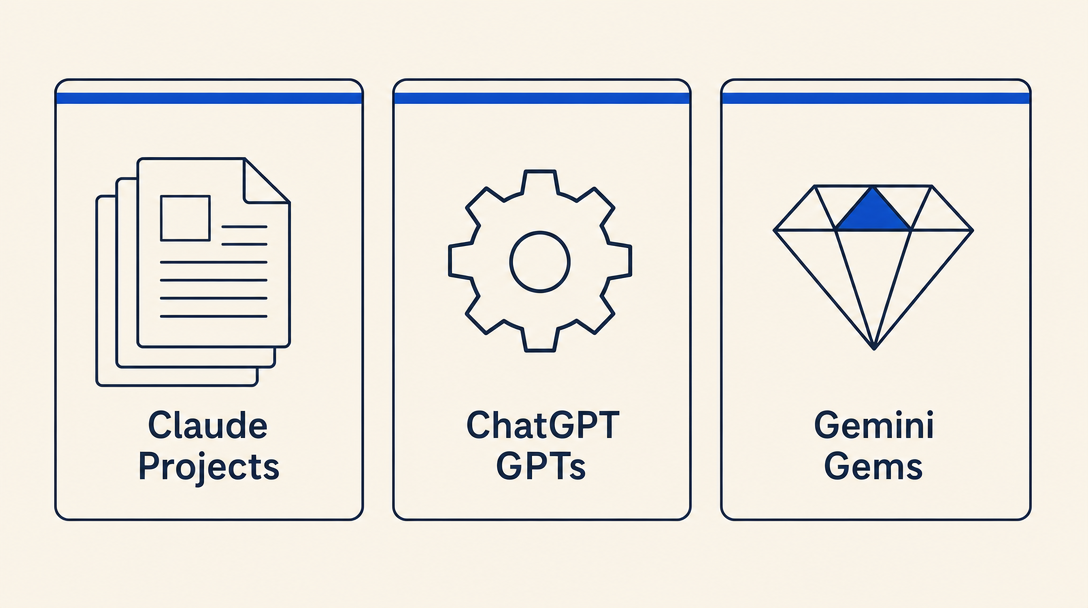
Claude Projects (Anthropic)
A Claude Project is a saved workspace with custom instructions and (optionally) reference documents. You write the instructions once, attach any reference files (a sample contract, your company style guide, a list of your products), and from then on every conversation inside that project starts with all of that context already loaded.
Best for: long-form thinking, careful writing, anything where you want the AI to deeply read and reason over your reference documents. Claude's writing in both Hebrew and English is consistently the most natural of the three. Hebrew handling is strong.
Setup steps:
- Go to claude.ai, sign in
- Click the "Projects" tab in the left sidebar
- "New Project", give it a name (e.g., "Contract drafter")
- Add "Project instructions" (your encoded mega-prompt: role, task, constraints, format)
- Upload reference files if you have any (PDFs, Word docs, spreadsheets)
- Start a new conversation inside the project; the instructions and files load automatically
Free tier: usable for short sessions. Claude Pro: around $20/month, expanded use and access to the best Claude models. Heavy users (long documents, many daily conversations) may hit Pro limits and upgrade to Claude Max ($100-200/month). Project availability on the free tier has changed over time; check claude.ai before assuming free-tier Projects work.
ChatGPT GPTs (OpenAI)
A GPT is a saved custom version of ChatGPT with its own instructions, knowledge files, and (for advanced users) custom actions that call external APIs. The GPT Store has thousands of pre-built GPTs you can use as starting points.
Best for: structured templates, scenarios where you want a clear input/output workflow, and use cases where someone else's pre-built GPT already does most of what you need.
Setup steps:
- Go to chatgpt.com, sign in
- Click "Explore GPTs" then "Create" in the top right
- Use the GPT Builder (you describe what you want; it generates the configuration) or "Configure" for direct editing
- Add the instructions, knowledge files, and conversation starters
- Save as private (just you) or unlisted (share via link)
Free-tier users can create and use GPTs with usage limits. ChatGPT Plus (around $20/month) expands the limits and unlocks the most capable GPT-4-class models. Start free; upgrade only when you hit a limit that actually blocks you.
Gemini Gems (Google)
A Gem is Google's equivalent of a saved custom AI assistant. The main differentiator: integration with Google Workspace (Gmail, Docs, Drive, Calendar). If your work happens in Google's ecosystem, Gems can read from your Drive and reference your Gmail and Calendar more fluidly than the other two platforms. (For write actions like "send this email" or "create this calendar event", you typically still need to approve each action manually; Gems do not silently send mail.)
Best for: workflows that involve your Google docs, your Gmail, your Calendar. Excellent for small business owners running on Google Workspace.
Setup steps:
- Go to gemini.google.com, sign in with your Google account
- Click the "Gems" section in the sidebar
- "Create new Gem"
- Give it a name, write the instructions, optionally tie it to specific Google Drive folders
- Save and use
Free tier includes basic Gem usage. The paid tier (currently branded Google AI Pro, around ₪97.90/month in Israel as of 2026, with a higher Google AI Ultra tier above) unlocks the more capable models and higher usage limits. Google rebrands this product periodically; check gemini.google.com for current naming and pricing before subscribing.
Claude Desktop: the local-files unlock
All three platforms above run in a browser. Claude has a fourth surface worth knowing about separately: Claude Desktop, a native Mac/Windows app that can read files from your computer through something called MCP (Model Context Protocol) servers. For non-developers in Israel, this is the most underrated feature in the whole AI space, because it is the only way to say "read every PDF invoice in my Downloads folder" or "summarize all the Word contracts in my Clients directory" without uploading files one at a time.
What you can do once Claude Desktop + the filesystem MCP server is set up:
- An accountant can point Claude at the folder of monthly scanned invoices and ask "list everything that looks like a software subscription"
- A lawyer can ask "in the past-contracts folder, find every contract that has a non-compete clause, list each one's term length"
- A small business owner can ask "open the Excel file on my desktop named 'inventory', tell me what is below reorder level"
Setup is a few clicks, not code:
- Download Claude Desktop from claude.ai (the desktop link is at the bottom of the home page)
- Sign in with the same Claude account you use on the web
- Open Settings → Connectors → install the official "Filesystem" connector
- Approve the macOS / Windows folder-access prompt when it appears (you choose which folders Claude can read)
- Start a conversation and ask Claude to read a file from one of the approved folders
ChatGPT and Gemini have desktop apps too, but their local-file access is more limited (single file at a time, or screen-reading rather than folder-reading). For the "read my whole folder of business documents" use case, Claude Desktop is the practical answer in 2026.
Two important caveats:
- The Filesystem connector gives the agent the same permissions you have on the files. Treat any folder you approve as something you are comfortable having an AI read. Do NOT approve folders containing passwords, private keys, or unrelated personal data.
- This is read-mostly today. Write actions (creating or modifying files) on the filesystem are gated by additional permission prompts; do not assume they happen silently.
Hebrew handling, briefly
All three platforms support Hebrew. The practical differences:
- Claude: writes the most natural Hebrew of the three, especially for long-form content. Best for anything where the Hebrew quality really matters (legal drafts, marketing copy, public-facing emails).
- ChatGPT: solid Hebrew, occasional awkward phrasing on complex sentences. Best for structured outputs and templates where occasional phrasing tweaks are acceptable.
- Gemini: improving fast. Best when you need Hebrew + tight Google Workspace integration.
If your task is "write a beautiful Hebrew thank-you letter," Claude. If it is "extract structured data from this Hebrew email and put it in my spreadsheet," any of the three. If it is "draft a Hebrew email replying to this one in my Gmail," Gemini.
File and image upload (universal across all three)
All three platforms accept drag-and-drop of PDFs, Word documents, Excel files, and images including photographs and scans. This matters more than the chat interface suggests:
- Scanned Hebrew documents (a contract you received as a PDF, an invoice you photographed with your phone, a receipt): drag it in, ask "summarize this in Hebrew" or "extract the line items as a table". OCR quality on Hebrew is solid on all three; Claude tends to be the cleanest on handwriting.
- Excel and Google Sheets exports: drag in an XLSX or CSV, ask the agent to analyze. This pairs well with the Code Interpreter / spreadsheet handling note in Chapter 4.
- Screenshots: take a screenshot of any UI, drag it in, ask "what does this dialog mean?" or "what should I click here?". Useful when stuck in a government portal you have not seen before.
A practical rule: if the source is on your screen or in a folder, upload it instead of retyping. Modern agents read documents far better than they remember what you described.
Sharing your agent with a team
Once your agent is doing useful work, the next question is whether your assistant, your partner, or your employee should use the same one.
- Claude Projects: shareable with other Claude users on the same plan (Pro/Team). For a small office on Claude Team, anyone in the workspace can access shared Projects.
- ChatGPT GPTs: three sharing modes: private (just you), unlisted (anyone with the link), or public on the GPT Store. Unlisted is the right default for internal company use, public if you actually want strangers to find it.
- Gemini Gems: shareable within a Google Workspace organization. The same Workspace controls that govern your Drive apply.
Practical implication: if you want your office to share an agent, the platform choice may come down to "what plan does the office already pay for". Sharing also raises a privacy question covered in Chapter 5: everyone using the agent inherits whatever data is loaded into its instructions and reference files.
A practical first step
Before paying for any of them, do this: take the longest prompt you have ever typed into a chatbot for repeated work. Set it up as a Claude Project (free tier), a ChatGPT custom instructions block (free for basic use), or a Gemini Gem (free tier). Run it three times on real tasks. You will know within an hour which platform suits how you work.
The most common mistake in Chapter 2: paying for premium on all three before exhausting the free tiers. Pick one. Use it for a week. Decide if it earns the subscription. The features that matter to you become clear quickly.
Want to keep reading?
Sign in to unlock the rest of the course and track your progress.