How to Use DESIGN.md
What DESIGN.md is, how to drop a design system from the gallery into your project, and how to connect it to your coding agent (CLI or direct download).
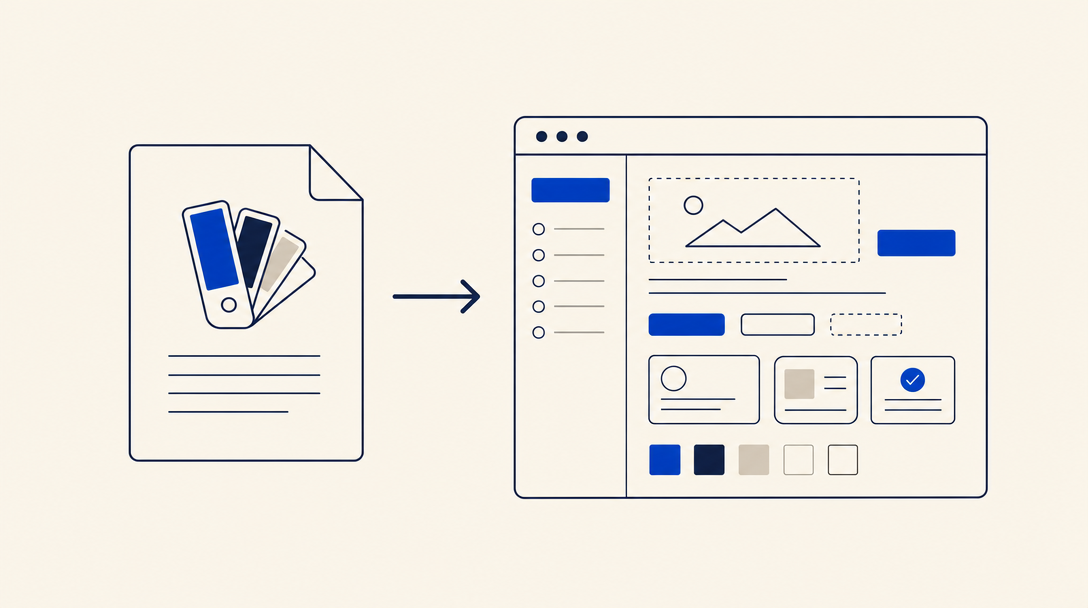
What Is DESIGN.md?
DESIGN.md is a single file at the root of your project that contains your product's "design book": colors, typography, spacing, rounded corners, light/dark modes, and component patterns. The format was created by Google Labs (Stitch) as something every coding agent can read, with no MCP, no SDK, and no dedicated extension. In practice it's just Markdown with YAML frontmatter, so Claude Code, Cursor, GitHub Copilot, Windsurf, Codex, and Gemini CLI can all use it out of the box. The full spec lives in the google-labs-code/design.md repository on GitHub.
The idea is simple: instead of every agent guessing what your interface should look like, it reads DESIGN.md and aligns every new component to the same design language. If your font is Heebo, your primary color is Israeli blue, and your buttons are rounded, every UI the agent builds will inherit those decisions automatically.
At Skills IL we built a design systems library pre-tuned for Hebrew typography and proper RTL behavior, so you don't have to maintain that yourself.
Why It Matters
Consistency across screens. Without DESIGN.md, every new feature the agent builds gets slightly different shades, different spacing, different fonts. Users feel it even if they can't articulate why.
Hebrew and RTL from day one. Generic design systems from the internet are built for English. They break niqqud, clip final-form letters, and align left when they should align right. The systems in our gallery have already passed a WCAG AA linter and Hebrew typography check.
Time. Instead of building a design system from scratch, you copy a ready-made one and within a minute the agent is already producing UI to your standard.
What You Need
Two things:
- A coding agent like Claude Code, Cursor, GitHub Copilot, Windsurf, OpenCode, Codex, Antigravity, or Gemini CLI
- A project you want to design, either an existing one or a fresh start
If you're using Claude.ai, Claude Desktop, or ChatGPT (platforms without local file access), you can still download DESIGN.md from the system page and paste its contents into the conversation as context.
1Pick a Design System
Browse the design gallery and pick a system that fits your product. Each card shows the fonts in use, light/dark capability, a WCAG AA badge, and how many installs it has. The detail page has a live preview so you can see exactly how it renders before installing.
Picking tips:
- Building for an Israeli audience? Look for the "Heebo" badge or systems that explicitly note RTL support
- Systems with a "WCAG AA" badge have already passed contrast checks, no manual fixing needed
- If your product needs dark mode, make sure
✓ dark capableis shown
2Install the Design System
Two options. Pick the one that fits your agent and environment.
Each design system page has an install command that looks like this:
npx skills-il add-design heritage-ilWhat to do:
- Copy the command (there's a copy button)
- Open a terminal at the root of your project
- Paste and run
The CLI saves DESIGN.md at the root of your project. That's the only file the agent actually reads.
If you're not using the CLI, or your environment doesn't allow npx (e.g. Claude.ai, Claude Desktop, ChatGPT), click the "Download DESIGN.md" button on the design system page.
- On the system page click "Download DESIGN.md"
- Drop the file at the root of your project
- On Claude.ai/ChatGPT: attach
DESIGN.mdas context to the conversation before asking the AI to build UI
The command won't overwrite an existing DESIGN.md silently. If you already have one, the CLI will ask whether to replace it.
3Connect Your Agent
This is the critical part. Just having DESIGN.md sitting in the folder isn't enough, you have to tell the agent to read it before building UI. Each agent reads a different rules file:
| Agent | Rules File |
|---|---|
| Claude Code | CLAUDE.md |
| Cursor | .cursor/rules/design.mdc |
| GitHub Copilot | .github/copilot-instructions.md |
| Windsurf | .windsurfrules |
| Gemini CLI | GEMINI.md |
| OpenCode / Codex / Antigravity | AGENTS.md |
You don't have to edit the file yourself. The system page has a ready-made prompt (under "Usage") that adapts automatically to the agent you select. Here's the flow:
- On the system page pick your agent's tab (Claude Code / Cursor, etc.)
- Copy the prompt (copy button on the side)
- Paste it to your agent in chat
- The agent will create or edit the rules file and add the DESIGN.md reference itself
From that moment on, every new UI request ("build me a signup form" or "add a profile page") will respect the colors, typography, and spacing defined in DESIGN.md.
4Build UI
Now just work with the agent as usual:
- "Build a settings page with 3 sections"
- "Add a user card with avatar and name"
- "Generate an invoice table with filters"
The agent will use colors, fonts, and spacing from DESIGN.md without any explicit instruction from you. Ask for a "primary button" and it'll pull the color from the primary token. Ask for a "main heading" and it'll pull the font and size from the Typography section.
If the agent seems to ignore the file, start a fresh chat. Agents read the rules file at the start of a conversation, so changes mid-session won't take effect until you reopen.
5Updating and Switching
Design systems evolve. To swap or update:
Update the same system to the latest version:
npx skills-il update-design heritage-ilThe CLI checks for a newer version of the DESIGN.md you already have and updates it in place, without losing manual edits you made.
To switch to a different system, run npx skills-il add-design <new-slug>. The CLI will detect the existing DESIGN.md and ask whether to replace it.
Want to tweak specific tokens (e.g. change the primary color)? Just edit DESIGN.md by hand. The agent will pick up the edited version on the next conversation.
Download the latest DESIGN.md from the system page and replace the one in your project.
Want to tweak specific tokens (e.g. change the primary color)? Just edit DESIGN.md by hand. The agent will pick up the edited version on the next conversation.
Frequently Asked Questions
Is this only for web, or also mobile?
DESIGN.md is technology-agnostic. It describes values (colors, typography, spacing), not a specific stack. The agent knows how to translate them into Tailwind, CSS, SwiftUI, Compose, or whatever you're using. The same DESIGN.md works in Next.js, React Native, and Flutter.
Does it replace Tailwind config or Figma design tokens?
No, it complements them. If you have a tailwind.config.ts with tokens, DESIGN.md tells the agent which token to use where and why. If you have Figma, DESIGN.md is the machine-readable version of the same decisions. You can maintain all three in parallel.
Which AI agents does this work with?
Any agent that can read project files: Claude Code, Cursor, GitHub Copilot, Windsurf, OpenCode, Codex, Antigravity, and Gemini CLI. On Claude.ai, Claude Desktop, and ChatGPT you can attach DESIGN.md as conversation context (file upload or paste).
Is it safe? What does the file actually contain?
DESIGN.md is plain Markdown (text only). No code execution, no scripts, no network calls. Every system in the gallery passes an automated linter that checks WCAG AA, token validity, and YAML format. You can always open the file in an editor and read it before installing. It's literally just a "design instruction book" the agent reads.
Why not just copy a DESIGN.md from GitHub?
You can. The difference is that systems in our gallery have been adapted for Hebrew: they pick fonts with strong Hebrew presence (like Heebo, Rubik, Assistant), spacing tokens that work correctly with RTL, and color contrast that passes WCAG AA on Hebrew text too. A generic DESIGN.md from getdesign.md or designdotmd.directory is built for English, and you may need to fix it manually.
Where can I learn more about the format?
The official spec is published at Google Labs Stitch (Overview) and in the google-labs-code/design.md repository on GitHub. The community directories at getdesign.md and designdotmd.directory are great for browsing real-world examples too, but our library focuses on the Israeli audience, Hebrew, and RTL.